




3.5 mm to in: The Fast Conversion—and the Audio “Input” Meaning Most Guides Miss
Key Takeaways
-
3.5 mm to in= 0.1378 inches (3.5 ÷ 25.4). -
Some people mean inches. Others mean audio IN (input/line-in). This page covers both.
-
If a plug fits but fails, it’s often TS/TRS/TRRS confusion (and headset CTIA vs OMTP wiring).
-
Hum/buzz in 3.5mm → RCA/line-in setups is often a ground loop.
-
USB-C to 3.5mm can make static/crackles depending on the phone and the dongle DAC.
-
For OEM/B2B, returns drop when you set specs for tolerances, plating, shielding, strain relief, labeling, and basic QA tests.
-
Where a supplier builds and ships from can affect lead time and risk for global buyers.
First paragraph (core keyword included):
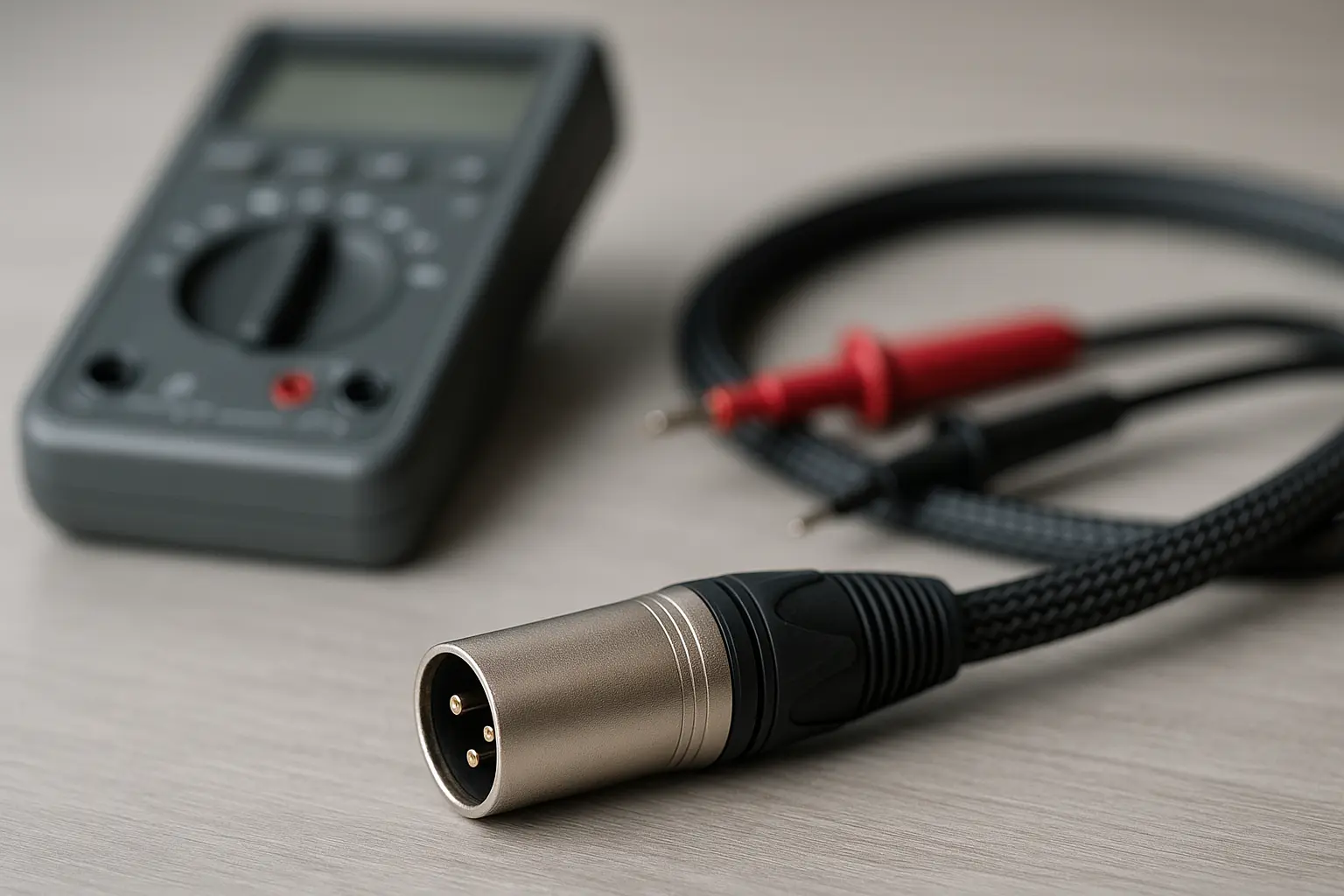
If you searched 3.5 mm to in, you may want a quick conversion to inches. Or you may mean 3.5mm to “IN” (input/line-in) in an audio setup. Either way, you’re in the right place. First, you’ll get the exact inches number. Then we’ll cover the common audio “IN” connections (RCA, XLR, 1/4") with real-world fixes for hum, static, and “hollow” sound. At the end, there’s an OEM checklist that fits how pro-audio manufacturers like Jingyi Audio (site_5615465d-0395-48c6-b01f-dc3d38213fc5) think about reliability.
Instant Answer Box: 3.5 mm to in
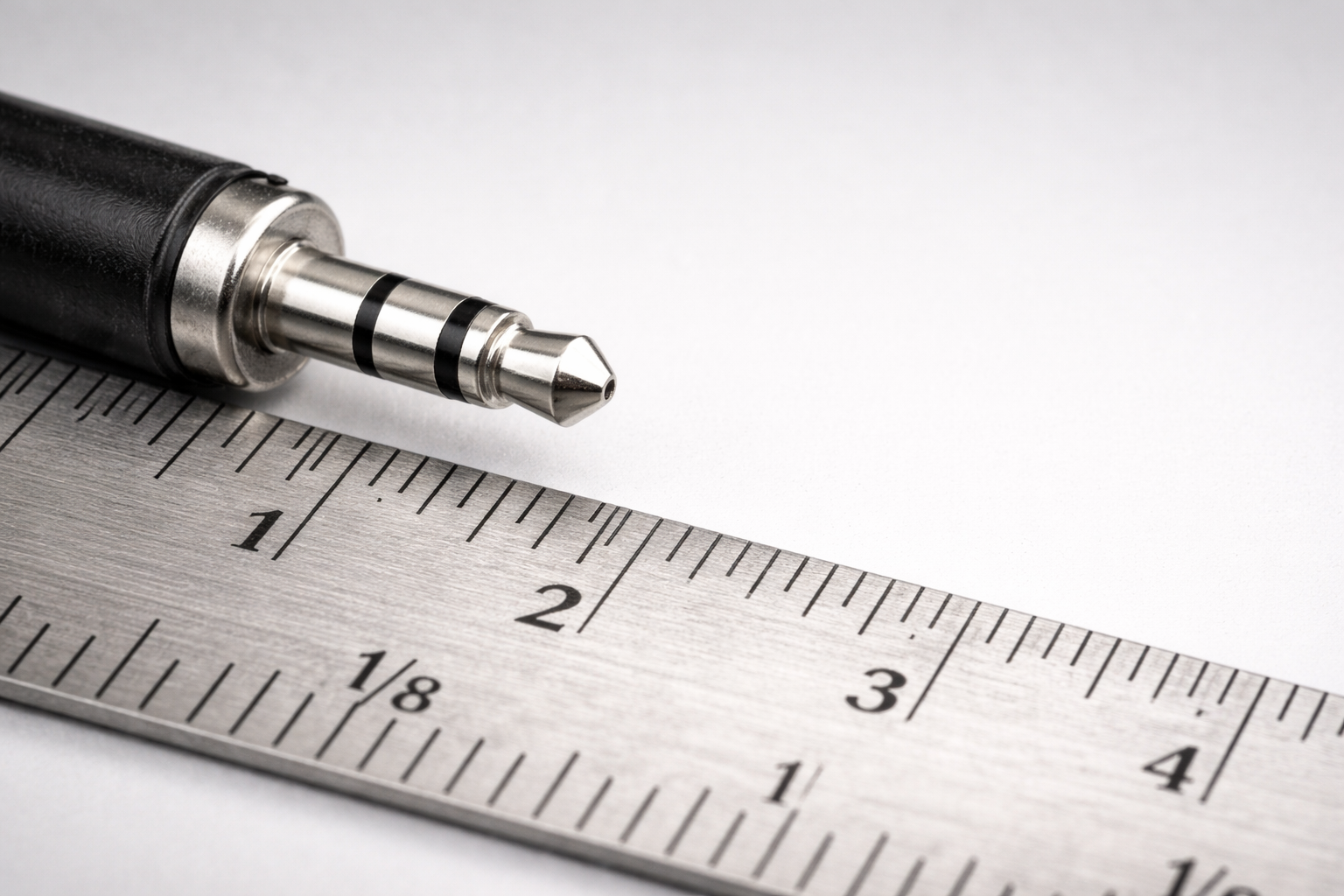
✅ 3.5 mm = 0.1378 in (rounded to 4 decimals)
Formula: in = mm ÷ 25.4
Exact: 3.5 ÷ 25.4 = 0.1377952756…
Copy-ready values
-
0.1378 in (most common)
-
0.138 in (quick estimate)
-
0.137795 in (high precision)
Quick Conversion Table (Audio-Relevant Sizes)
| Connector Size | Inches (approx.) | Where You See It |
|---|---|---|
| 2.5 mm | 0.0984 in | Older headsets, some balanced adapters |
| 3.5 mm | 0.1378 in | AUX, legacy phones/PCs, small mics |
| 4.4 mm | 0.1732 in | Balanced headphones (Pentaconn) |
| 6.35 mm | 0.2500 in | “1/4 inch” pro audio, guitars, mixers |
If You Meant Audio “IN” Instead of Inches
Jump to the section you need:
-
TS/TRS/TRRS (why it fits but fails)
-
3.5mm → RCA input (hum/ground loop fixes)
-
3.5mm → XLR input (why sound can get hollow)
-
3.5mm → 1/4" input (adapter safety + best practices)
-
USB-C → 3.5mm (static/crackles troubleshooting)
-
OEM/B2B checklist (specs + QA tests + sourcing notes)
1) Why “3.5mm = 1/8 inch” Is Close—but Not Exact
People often call 3.5mm “1/8 inch,” but the numbers don’t match:
-
1/8 in = 0.125 in = 3.175 mm
-
3.5 mm = 0.1378 in
The difference is 0.325 mm. That sounds tiny, but it can show up as:
-
a slightly loose fit
-
an intermittent ground contact
-
scratchy “static” when the plug wiggles
Simple takeaway: good connectors aren’t just “the right size.” They’re made with tight tolerances and decent plating.
2) TS vs TRS vs TRRS: The #1 Reason “It Fits but Doesn’t Work”
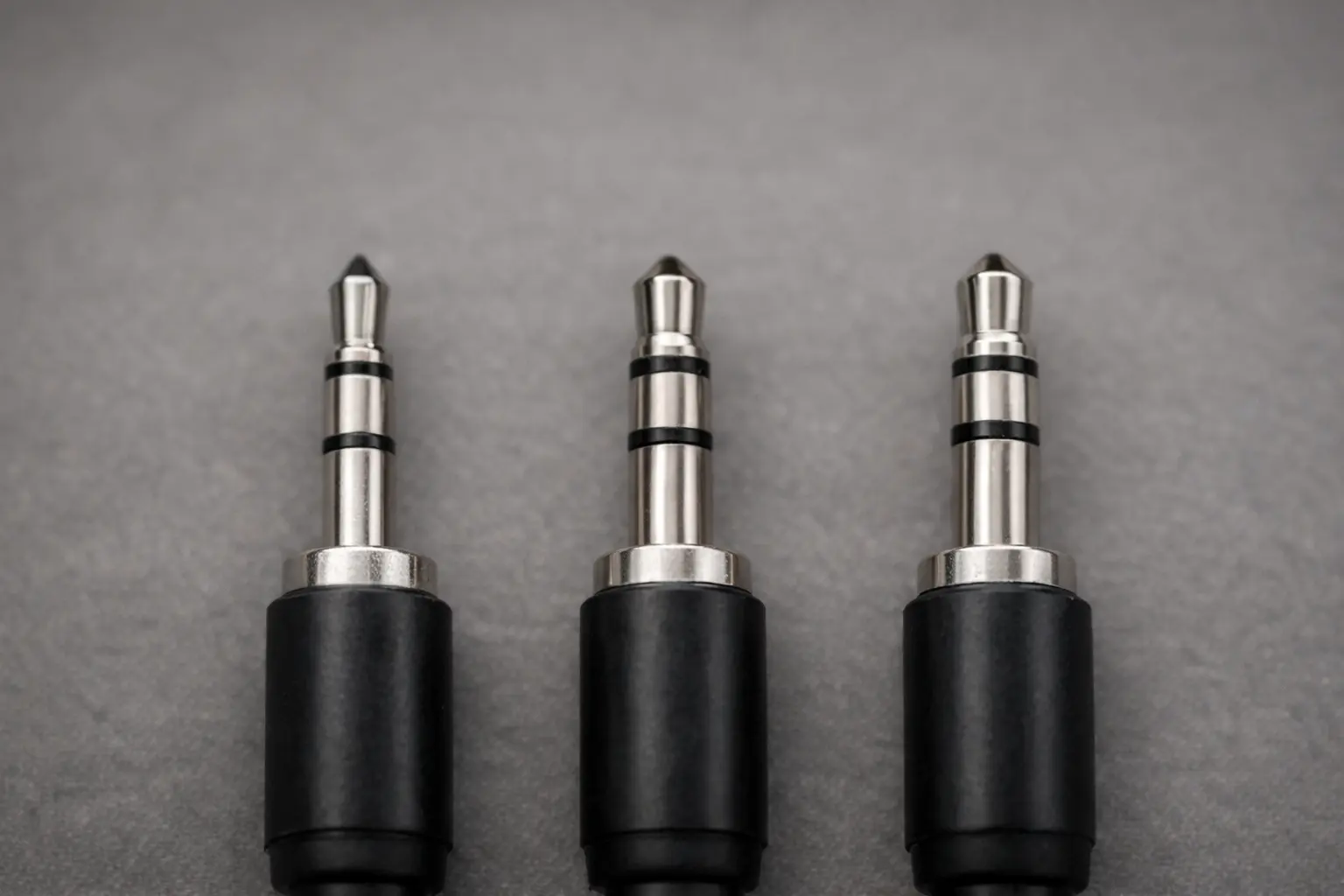
Here’s the quick cheat sheet:
TS (Tip-Sleeve)
-
2 contacts
-
mono (common for instruments)
TRS (Tip-Ring-Sleeve)
-
3 contacts
-
stereo headphones or stereo line
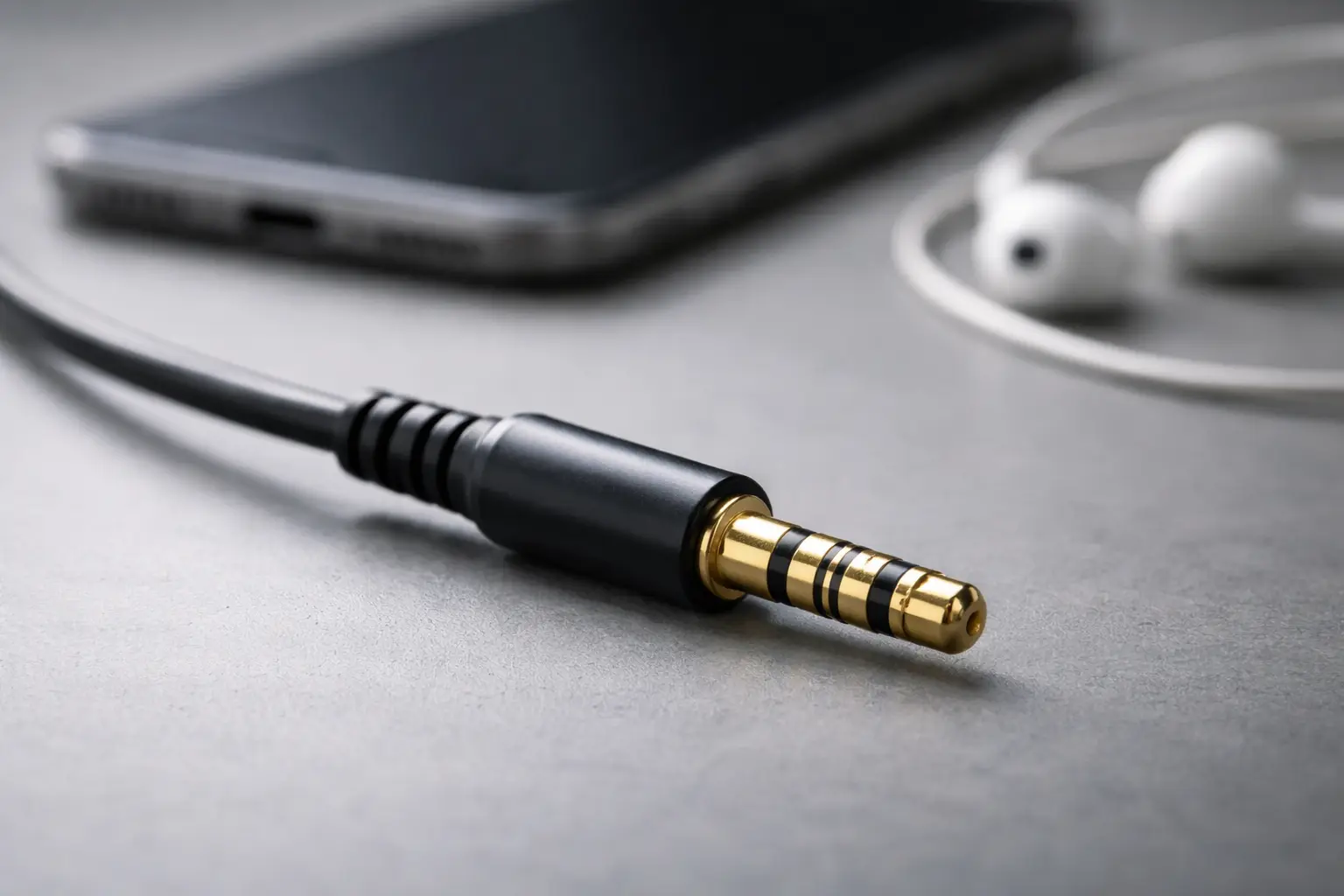
TRRS (Tip-Ring-Ring-Sleeve)
-
4 contacts
-
headset audio + mic (common on phones)
If someone says “my mic doesn’t work,” it’s often not the mic. It’s the plug type.
CTIA vs OMTP (Headset Mic Failures)
TRRS has two common wiring styles:
-
CTIA (most modern phones)
-
OMTP (older devices and some older accessories)
Mismatch symptoms:
-
mic not detected
-
odd noise/static
-
remote buttons don’t work
If you sell headset-related products, you can cut support tickets by putting one line on the packaging:
“CTIA wiring (most modern phones). OMTP needs an adapter.”
3) 3.5mm to Common “IN” Ports: What Works, What Breaks, What Pros Do
Most pages say “buy an adapter.” Real users want a setup that behaves the same every time.
3.1 Adapter Decision Table
| Your Source | Your “IN” Port | Safe to do directly? | Common Risk | Best Practice |
|---|---|---|---|---|
| 3.5mm TRS (stereo) | RCA (L/R) | ✅ Usually | hum/buzz (ground loop) | short cable; good shielding; isolator if needed |
| 3.5mm TRS (stereo) | XLR (single balanced input) | ⚠️ Risky | hollow sound / missing center | split to dual XLR or use a proper DI/summing method |
| 3.5mm TRS/TRRS | 1/4" (6.35mm) | ✅ Often | port damage with rigid adapter | use a pigtail adapter to reduce torque |
| USB-C device | 3.5mm chain | ⚠️ Depends | static/crackles | test dongles; document compatibility |
4) 3.5mm → RCA Input: Hum, Buzz, and Ground Loops
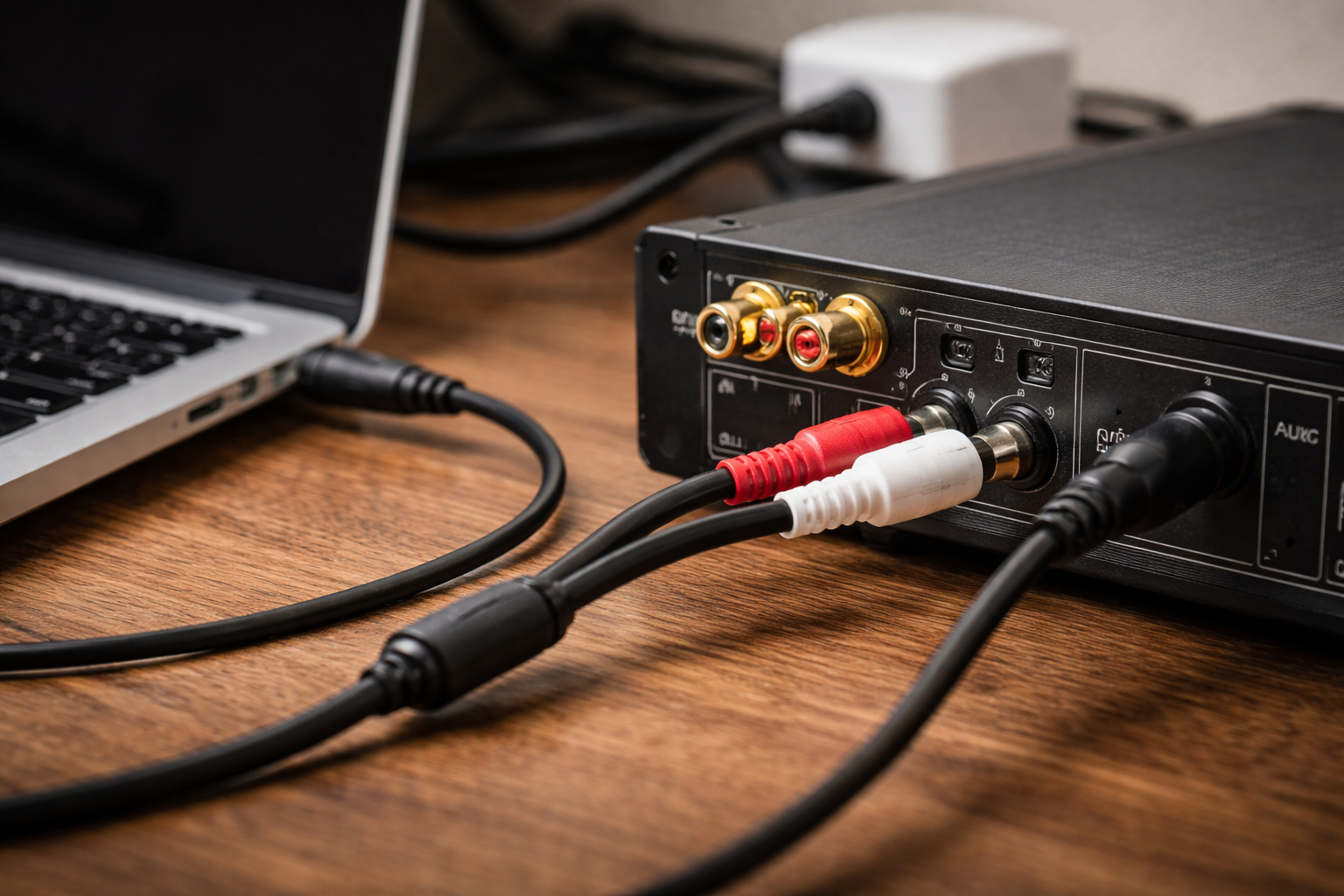
A common story:
-
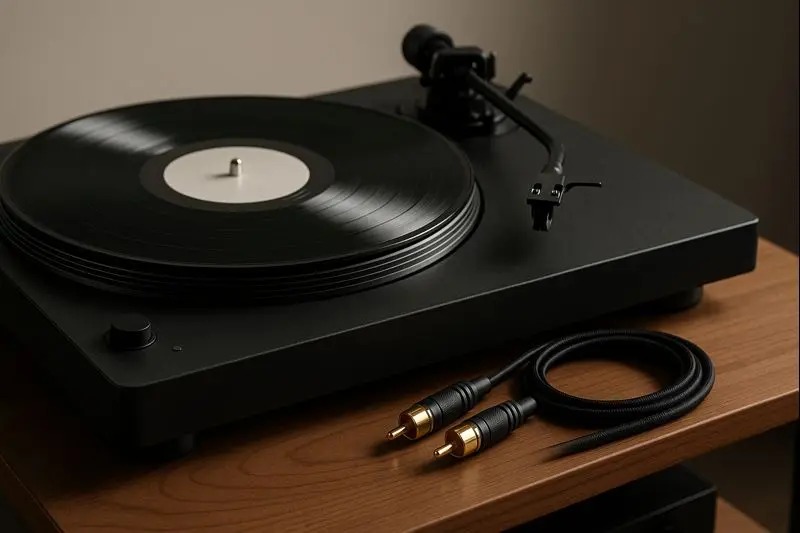
laptop 3.5mm out → RCA into an amp
-
“It works, but there’s a hum… and it changes when I move the mouse.”
-
“It’s worse when charging.”
That pattern often points to a ground loop in an unbalanced connection.
Fast Fix List
-
Unplug the charger and test.
-
Plug both devices into the same power strip.
-
Use a shorter cable if you can.
-
If the hum stays, use a ground loop isolator.
OEM note
For private-label 3.5mm-to-RCA products, the usual return reasons are boring but fixable:
-
weak shielding
-
poor strain relief
-
inconsistent connector fit
Solving those beats writing “premium” on the box.
5) 3.5mm → XLR Input: Why Sound Can Turn Hollow
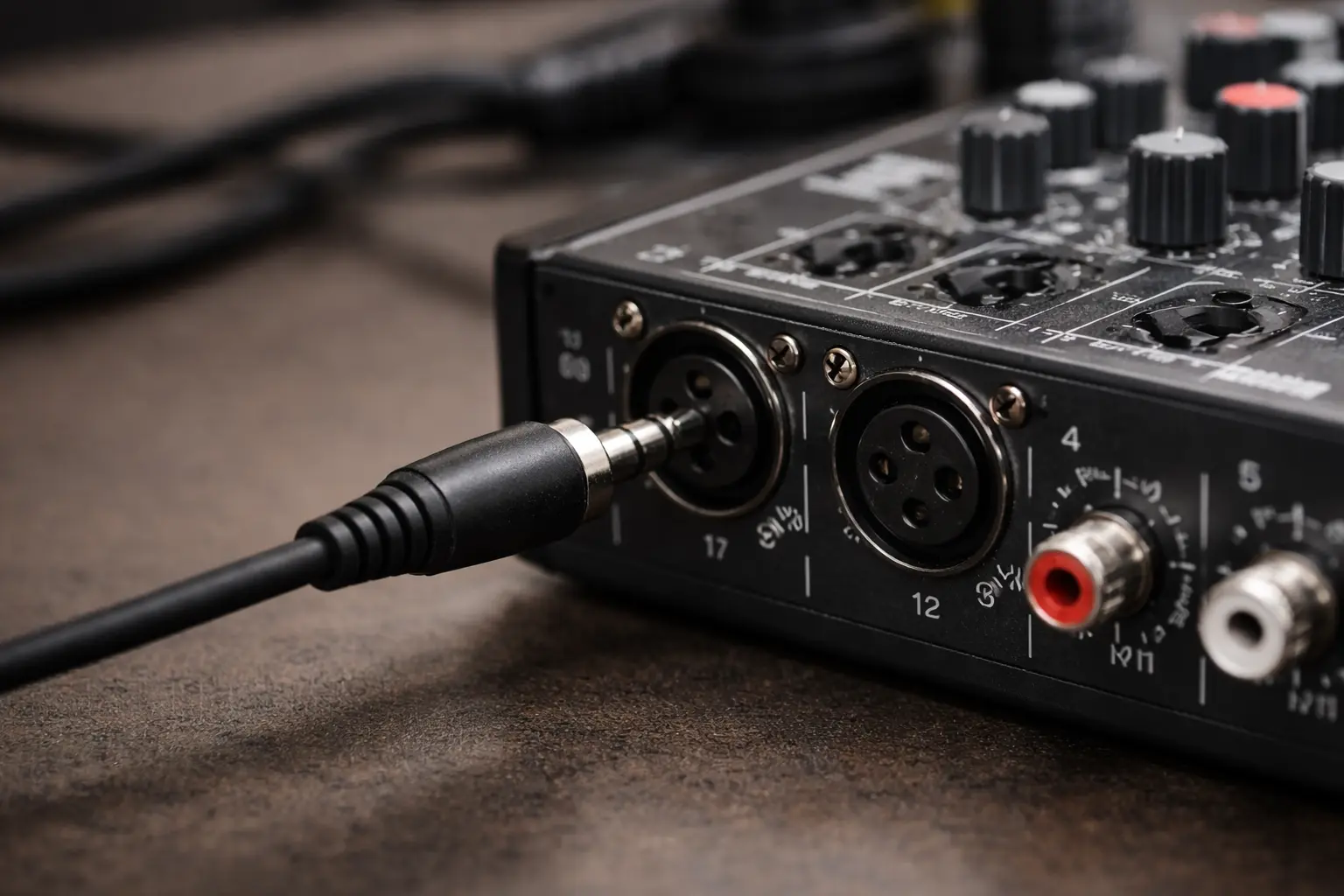
This is where “it plugs in” tricks people.
-
3.5mm TRS is often stereo unbalanced (L/R/GND).
-
A single XLR input is usually mono balanced (hot/cold/ground).
When stereo gets wired into balanced mono the wrong way, users may hear:
-
thin sound
-
hollow sound
-
vocals missing
Better Options
-
Use stereo to dual XLR (L to one channel, R to another).
-
If you truly need mono, use a proper summing/DI approach instead of a random adapter.
6) 3.5mm → 1/4" Input: The Rigid-Adapter Port Problem
This is a simple physics problem: a rigid adapter can act like a lever. One bump can stress a 3.5mm jack.
What works better
Use a pigtail (short cable) adapter when the source device is fragile (laptops, tablets, wireless packs).
It’s not fancy. It’s just safer.
7) USB-C → 3.5mm: Why Some Dongles Make Static
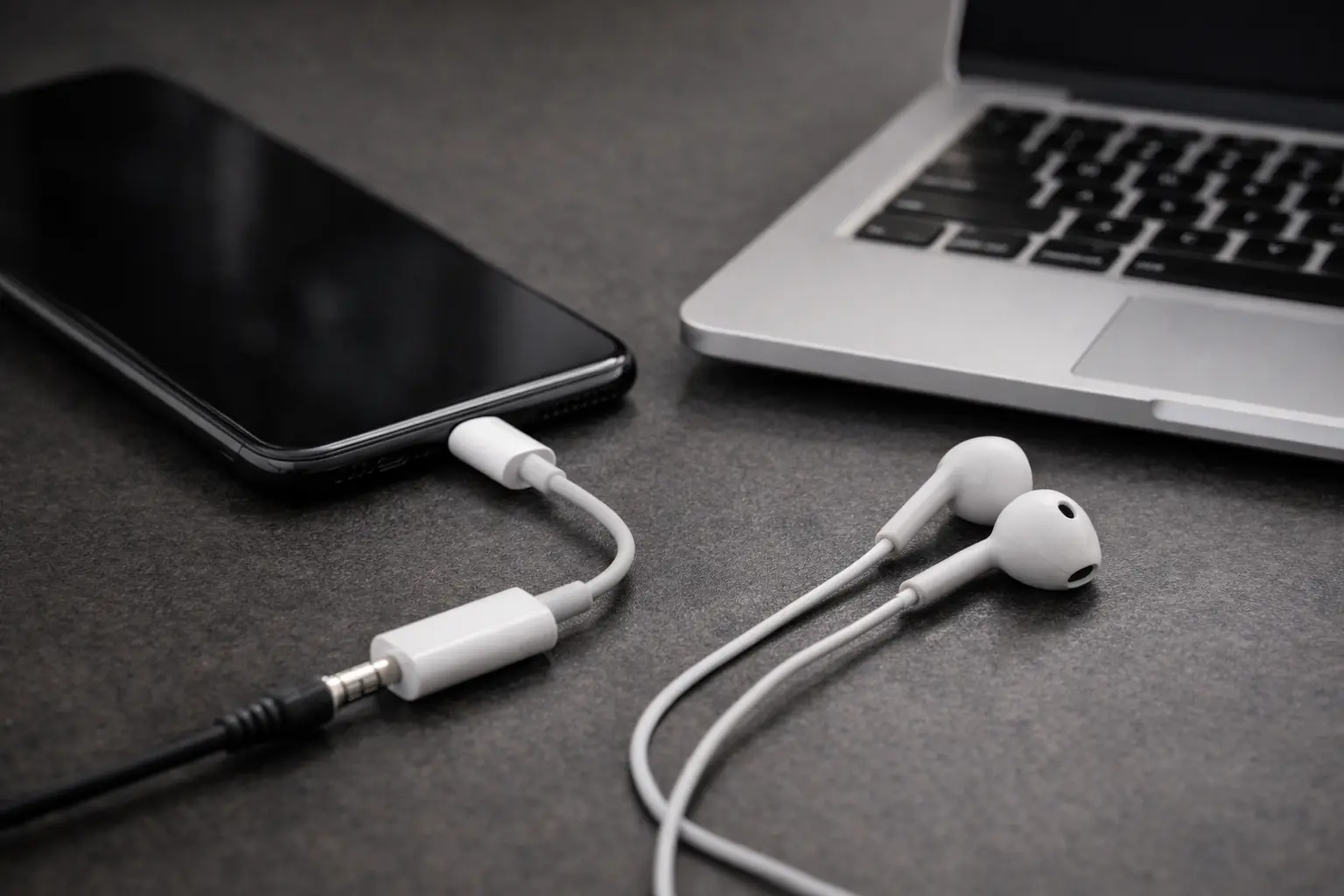
With dongles, there are more variables:
-
Some have a built-in DAC (active).
-
Some rely on the phone (passive).
-
Phones handle USB audio differently.
Case Card: “Same dongle, different result”
A common community pattern is that a dongle can work fine on one device but crackle on another. That often means the phone’s USB audio handling and power/ground behavior is part of the issue, not only the dongle.
Quick Checklist
-
Test the dongle on another device.
-
Try a dongle from a supplier with known compatibility.
-
See if noise changes while charging or under heavy load.
-
If you’re recording, double-check input mode settings.
B2B tip: If you private-label dongles, keep a simple compatibility list by phone model. It saves you a lot of email.
8) Social Proof That Matters: Less “Pop,” More Safety
People praise audio connection products for practical reasons:
-
fewer loud pops when connecting
-
faster instrument swaps
-
less gear damage
This is a useful reminder: most buyers aren’t chasing magic sound. They want fewer problems.
9) OEM / ODM Buyer Checklist: How to Spec 3.5mm Products That Hold Up
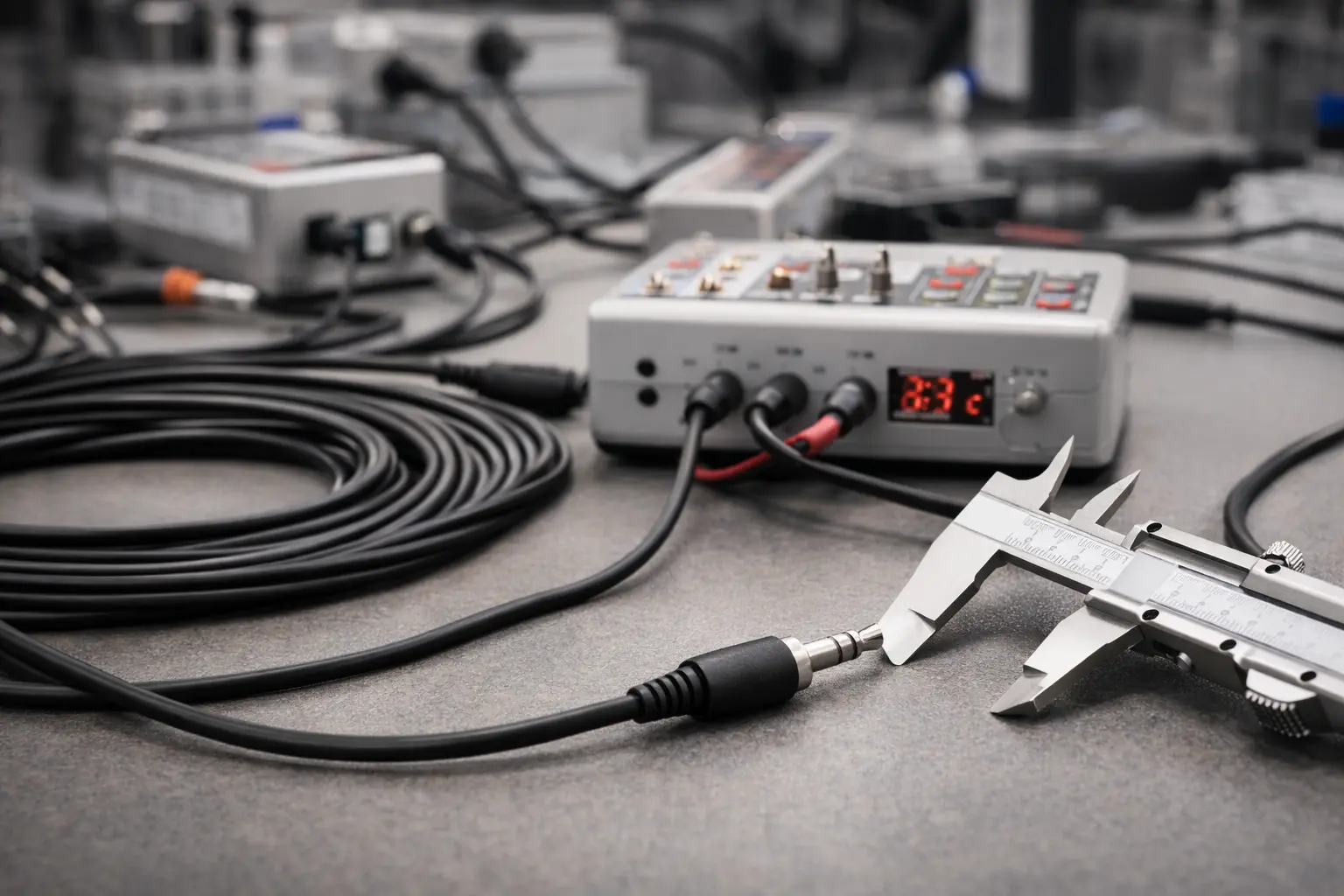
If you sell these at scale, your main goal is fewer failures and fewer “it doesn’t work” complaints.
9.1 RFQ Checklist (Copy/Paste)
Ask your supplier to confirm:
-
connector tolerances (fit consistency)
-
plating type and thickness
-
shielding build
-
strain relief design
-
jacket material and flexibility
-
continuity targets
-
labeling for TS/TRS/TRRS and CTIA/OMTP where relevant
-
compliance (RoHS/REACH as needed)
-
packaging that reduces misuse (especially XLR edge cases)
9.2 QA Tests to Request
-
100% continuity test (good for high-volume SKUs)
-
pull test
-
bend/flex test
-
insertion cycle test
-
basic wiggle test for intermittent noise
10) Sourcing Notes: Why Location Can Matter for B2B
For global buyers, location often affects:
-
shipping time
-
logistics options
-
backup capacity planning
If a supplier supports more than one production base, that can help with continuity planning.
11) Where Jingyi Audio Fits
If you’re building a 3.5mm product line, Jingyi Audio’s site is a useful reference point for how a manufacturer groups products by use case (3.5mm family pages, and common “3.5mm to IN” conversions). It’s also a reminder that OEM success depends on the small details: fit, plating, shielding, strain relief, labeling, and testing.
FAQ: 3.5 mm to in and 3.5mm to Input (Line-In)
1) What is 3.5 mm to in exactly?
3.5 mm = 0.1378 inches (3.5 ÷ 25.4).
2) Is 3.5mm exactly 1/8 inch?
No. 1/8 inch is 3.175 mm, so 3.5mm is larger.
3) Why does “in” sometimes mean input?
In audio, “IN” often means input/line-in. So the phrase can mean a connection question, not a unit conversion.
4) What’s the difference between TS, TRS, and TRRS?
TS is mono, TRS is stereo (or balanced mono in some gear), and TRRS is headset audio plus mic.
5) How do I stop hum when connecting 3.5mm to RCA/line-in?
Try shared power, shorter runs, and a ground loop isolator if needed.
6) Why does 3.5mm to XLR sometimes sound hollow?
Because stereo unbalanced signals can be miswired into a balanced mono XLR input. Splitting to dual XLR usually works better.
7) Why can USB-C to 3.5mm crackle or have static?
Because phone USB audio behavior and dongle DAC design vary by device. Testing matters.
8) What should an OEM buyer specify for 3.5mm cables and adapters?
Tolerances, plating, shielding, strain relief, clear labeling, and simple QA tests.
Citations (URLs)
1) https://site_5615465d-0395-48c6-b01f-dc3d38213fc5/
2) https://site_5615465d-0395-48c6-b01f-dc3d38213fc5/3.5-mm/
3) https://site_5615465d-0395-48c6-b01f-dc3d38213fc5/news/3-5mm-audio-jack-vs-aux/
4) https://site_5615465d-0395-48c6-b01f-dc3d38213fc5/news/rca-vs-3-5mm/
5) https://community.nothing.tech/