



Does HDMI Cable Carry Audio? Complete 2025 Guide to HDMI Sound Transmission
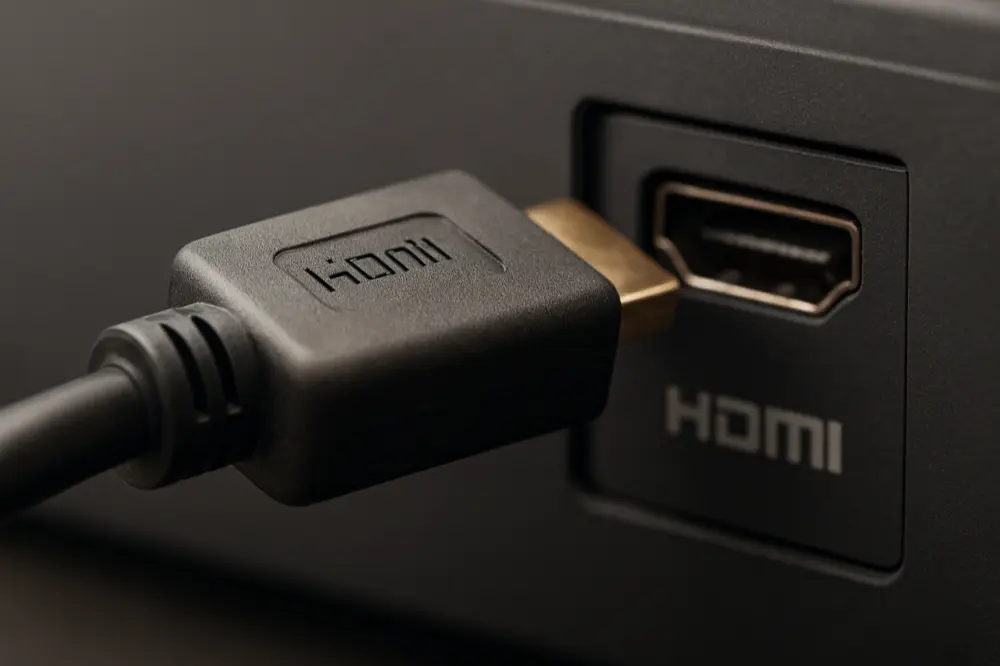
When setting up your home theater, you've probably wondered: does HDMI cable carry audio? Yes, absolutely. HDMI (High-Definition Multimedia Interface) was built from day one in 2002 to handle both stunning video and rich digital audio through one simple cable. No more cable chaos behind your TV.
Before HDMI, connecting your entertainment system meant juggling multiple cables - separate ones for video, left audio, right audio, and sometimes more for surround sound. HDMI changed everything. Now your gaming console, Blu-ray player, or streaming device sends crystal-clear 4K video and theater-quality sound through a single connection.
This guide breaks down how HDMI audio actually works, which sound formats it supports, what ARC and eARC mean for your setup, and how to fix common audio problems. You'll understand why HDMI became the go-to choice for modern home entertainment.
Key Takeaways
✅ HDMI Audio Capability: All HDMI cables carry audio - it's built right in, not added later
✅ Format Support: Handles everything from basic stereo to Dolby Atmos and DTS:X surround sound
✅ ARC vs eARC: eARC gives you 37 times more audio bandwidth than regular ARC
✅ Cable Types: Standard HDMI works fine for most audio; Ultra High Speed needed for eARC
✅ Common Problems: Most "no sound" issues come from wrong settings, not broken cables
How HDMI Audio Actually Works
The Clever Way HDMI Packs Audio Data
HDMI doesn't send audio the same way traditional audio cables do. Instead, it uses a smart trick borrowed from old television technology. Remember those brief black bars you'd see between TV channels? HDMI uses similar "blank" moments between video frames to slip in audio data.
These moments happen when the video signal pauses between sending each line of pixels. HDMI engineers called this the "Data Island Period" - perfect timing to send audio packets without messing up your picture. Each audio packet includes error-checking codes to make sure your sound stays clean and clear.
This design shows brilliant engineering. Rather than making HDMI connectors bigger to fit separate audio channels, they found unused space in the video signal itself.
The Digital Handshake: How Devices Talk
Before any sound plays, your devices need to "shake hands" digitally. Your source device (like a PlayStation) reads information from your TV or receiver to learn what audio formats it can handle. This conversation happens through a separate communication channel called DDC (Display Data Channel).
Your TV essentially hands over a list saying "I can play these audio formats at these quality levels." Your source device checks this list and only sends compatible audio. When this handshake fails, you get the dreaded "video but no sound" problem.
HDMI Audio Through the Years: Getting Better Every Time
Early Days (HDMI 1.0-1.2): Building the Foundation (2002-2005)
HDMI 1.0 started strong with support for 8-channel surround sound and common formats like Dolby Digital and DTS. This handled DVD and early Blu-ray audio just fine.
HDMI 1.1 added support for DVD-Audio - a high-quality format music lovers appreciated. HDMI 1.2 brought Super Audio CD compatibility, keeping audiophiles happy.
The Big Leap (HDMI 1.3-1.4): Lossless Audio Arrives (2006-2009)
HDMI 1.3 doubled the data pipeline to 10.2 Gbps. This opened the door for Dolby TrueHD and DTS-HD Master Audio - the pristine, lossless audio formats you find on Blu-ray discs. These formats deliver exactly what the studio recorded, with zero compromise.
HDMI 1.4 brought us Audio Return Channel (ARC). This game-changer let your TV send audio back to your soundbar through the same HDMI cable. Finally, you could watch Netflix on your smart TV and hear it through your sound system without extra cables.
Modern Era (HDMI 2.0-2.1): 4K Audio and Beyond (2013-2017)
HDMI 2.0 jumped to 18 Gbps bandwidth and expanded audio support to 32 channels - way more than most people need, but ready for future tech.
HDMI 2.1 was the biggest upgrade yet, hitting 48 Gbps. The star feature? Enhanced Audio Return Channel (eARC) - ARC's much more capable big brother that handles any audio format you throw at it.
Every Audio Format HDMI Supports
Uncompressed Audio: The Pure Stuff
LPCM (Linear Pulse Code Modulation) is HDMI's baseline requirement. Think of it as the "raw" digital version of your audio - no compression, no shortcuts. Every HDMI device must handle stereo LPCM, and most support multi-channel versions up to 7.1 surround sound.
When your device can't send other audio formats directly, it converts them to LPCM first. This ensures compatibility across all your equipment.
Compressed Audio: Efficient and Everywhere
These formats shrink file sizes but sacrifice some quality - perfect for DVDs and streaming:
•Dolby Digital: The standard 5.1 surround sound you know from movie theaters
•DTS: A competing format with similar capabilities
•Dolby Digital Plus: An upgraded version that streaming services love because it packs more quality into smaller files
Lossless Audio: Studio-Perfect Sound
These formats compress audio without losing any information - like a ZIP file for music:
•Dolby TrueHD: Found on Blu-ray discs, delivers bit-perfect studio quality
•DTS-HD Master Audio: DTS's equivalent lossless format, equally impressive
•Object-Based Audio: Sound That Moves Around You
The latest innovation treats individual sounds as "objects" that can move through 3D space:
•Dolby Atmos: Sounds can come from above, behind, anywhere around you
•DTS:X: Similar concept with slightly different implementation
These formats piggyback on existing ones - Dolby Atmos often rides inside Dolby TrueHD streams.
ARC vs eARC: Your Audio Return Options
Regular ARC: Solving the Smart TV Problem
Smart TVs created a new challenge. Your TV's built-in Netflix app produces audio, but you want that sound coming from your fancy soundbar, not the TV's tiny speakers. ARC solved this by letting audio flow backward through your HDMI cable.
ARC has limited bandwidth (about 1 Mbps), so it only handles compressed surround sound formats. Good enough for streaming services, but it can't handle the high-quality lossless audio from your 4K Blu-rays.
eARC: No More Compromises
eARC cranks up the bandwidth to 37 Mbps - enough for any audio format you can imagine. Lossless Dolby Atmos from your 4K Blu-ray player? No problem. Uncompressed 7.1 surround? Easy.
eARC also includes automatic lip-sync correction and better device communication, fixing problems that frustrated ARC users.
Setup Requirements: What You Need
For ARC: High Speed HDMI cable and compatible ports on both your TV and sound system.
For eARC: Ultra High Speed HDMI 2.1 cable and eARC-compatible devices.
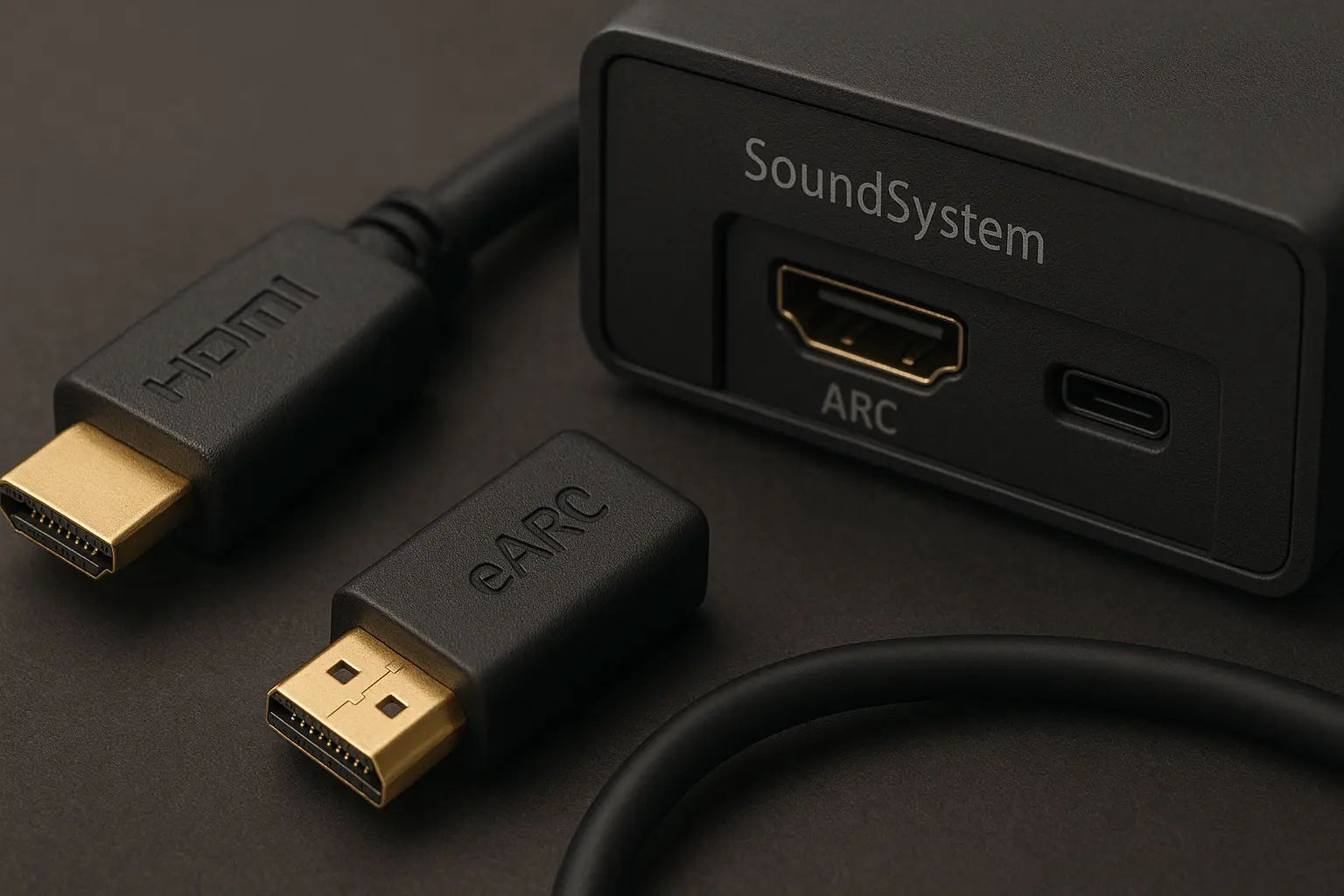
Both need specific ports - usually labeled "ARC" or "eARC" on your equipment. If you mix ARC and eARC devices, you'll get ARC performance (the slower one wins).
Fixing Common HDMI Audio Problems
No Sound But Picture Looks Fine
This happens more often than broken hardware. Here's your troubleshooting checklist:
Check Your Settings First
Source devices often default to internal speakers or other outputs. On your PlayStation, Xbox, or PC, go to audio settings and specifically choose your HDMI-connected TV or receiver. On Windows, right-click the volume icon and make sure the right HDMI device is your default.
Verify Physical Connections
Using ARC or eARC? Make sure you're plugged into the right ports - not just any HDMI port. Check that connections are snug. Loose connections cause intermittent problems.
Update Your Drivers
On PCs, your graphics card handles HDMI audio. Old or corrupted drivers cause sound problems. Download fresh drivers from NVIDIA, AMD, or Intel's websites.
Try the Universal Fix: Power Cycling
Turn everything off. Unplug all devices from the wall for a full minute. Plug back in and turn on in this order: TV first, then sound system, then source device. This forces a fresh "handshake" between devices.
Audio Cutting In and Out
Cable Limitations: If high-quality audio stutters, your cable might not handle the bandwidth. Upgrade to a proper High Speed or Ultra High Speed HDMI cable.
Interference Issues: Keep HDMI cables away from power cords and wireless routers. Electromagnetic interference can disrupt digital signals.
Protocol Glitches: Random dropouts often mean devices aren't communicating properly. Another power cycle usually fixes this.
HDMI vs Other Audio Connections
HDMI Beats Optical Cable Every Time
Optical (TOSLINK) cables seem fancy with their glowing ends, but they're limited. They only handle compressed 5.1 surround sound - no high-resolution formats, no Dolby Atmos, no multi-channel lossless audio. HDMI does all of this plus carries video in the same cable.
DVI Doesn't Do Audio
DVI (Digital Visual Interface) only handles video. Some rare graphics cards can inject audio into DVI connections, but don't count on it. If you need both audio and video, use HDMI instead of DVI adapters.
Frequently Asked Questions
Q: Do all HDMI cables carry audio?
Yes, every certified HDMI cable carries audio. It's part of the basic specification. There are no "video-only" or "audio-only" HDMI cables - they all handle both signals.
Q: What HDMI cable do I need for Dolby Atmos?
For streaming Dolby Atmos (compressed): Any High Speed HDMI cable works fine. For 4K Blu-ray Dolby Atmos (lossless): Use an Ultra High Speed HDMI 2.1 cable, especially with eARC setups.
Q: Why does my HDMI audio keep cutting out?
Usually wrong settings, old drivers, or communication glitches between devices. Try power cycling everything first - this fixes most intermittent audio problems.
Q: Can I use any HDMI port for ARC?
No. Most TVs only designate one port for ARC/eARC, typically labeled clearly. It's often HDMI port 1 or the highest-numbered port. Wrong port = no ARC functionality.
Q: Is HDMI audio better than Bluetooth?
Much better. HDMI sends uncompressed audio with zero delay. Bluetooth compresses your audio and adds noticeable lag between video and sound. For home theater, HDMI wins every time.
Wrapping Up
HDMI audio goes way beyond basic stereo sound. Since 2002, HDMI has grown from simple surround sound support to handling today's most advanced audio formats like Dolby Atmos and DTS:X.
Understanding ARC versus eARC, knowing your audio format options, and having solid troubleshooting skills will help you get the most from your home theater setup. Whether you're connecting a basic soundbar or building a premium surround sound system, HDMI delivers the quality and convenience that made it the industry standard.
From HDMI 1.0's 8-channel support to HDMI 2.1's 32-channel capability and eARC technology, this standard keeps evolving with our entertainment needs. As streaming services offer better audio and gaming systems demand faster connections, HDMI stays ahead of the curve.
Next time someone asks "does HDMI cable carry audio," you can explain not just that it does, but how it brings cinema-quality sound to every movie, game, and show you enjoy.