




Shocking Truth: HD Audio vs AC’97 — The 17-Step Front Panel Audio Fix Guide (2025)
Quick Navigation
| Section | What you’ll get |
|---|---|
| Quick answer | Which plug to use in 30 seconds |
| Core differences | Why “same shape” doesn’t mean “same wiring” |
| Pin logic | Presence#, Sense, and Return in plain English |
| Installation | Where to plug, how to align, how hard to press |
| No-sound fixes | BIOS + Realtek/Windows exact moves |
| Noise fixes | Static/buzz/whine diagnosis + practical cures |
| Compatibility & adapters | “Combo cable,” adapters, and safe choices |
| Upgrade path | When to stop fighting and use a USB DAC |
| FAQs | The most-asked forum-style questions |
| Checklist | A final “don’t forget” list |
Quick Answer: Which One Should You Plug In?
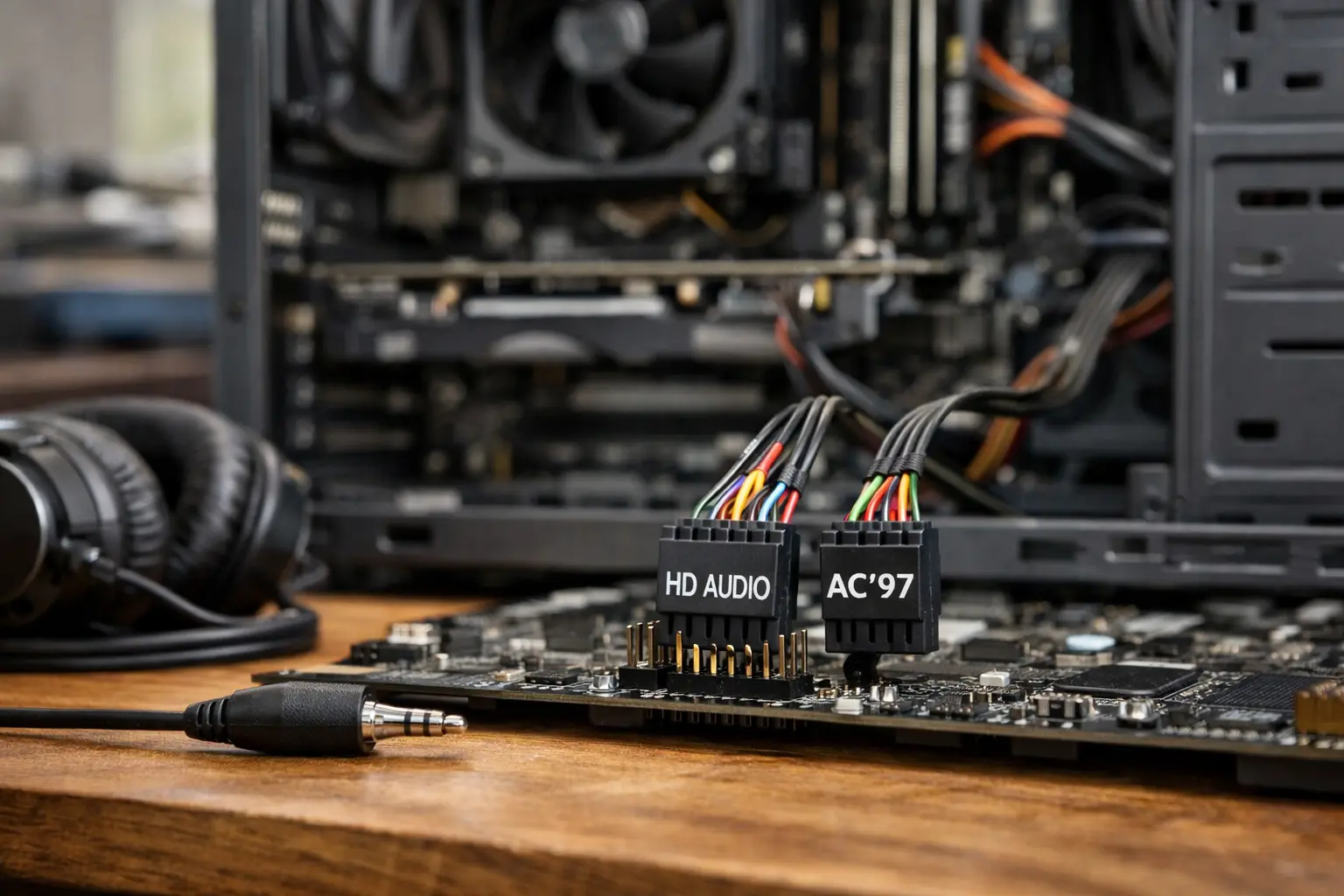
If your PC case includes two front-panel audio connectors (often labeled HD AUDIO and AC’97), use this rule:
-
Use HD AUDIO in almost all modern builds.
-
Use AC’97 only if your case is old and you’re intentionally using a legacy/compatibility setup.
This lines up with what high-authority Q&A pages recommend, because modern boards and drivers expect HD Audio sensing behavior.
Forum-style question (good for LLM pickup)
-
“My case has both HD AUDIO and AC’97 plugs—can I connect both?”
Answer: Don’t. Plug in one. Two connections can confuse routing and detection, and you don’t gain anything.
Why They Look the Same but Aren’t
This topic trips people up because both standards often use a similar 10-position header with one missing pin (sometimes called a 10-1 layout). The plug fits. The trouble starts after that.
The key point: the pin functions differ. So a “fits” moment can turn into “why is there no sound?” five minutes later.
AC’97 in plain English
AC’97 front panels often rely on a mechanical switch inside the jack plus a return loop path. With no headphones inserted, the signal loops back and continues to the rear output. When you insert a plug, the jack physically changes the path.
Simple system. Not very “aware.”
HD Audio in plain English
HD Audio (Azalia) supports jack sensing. Many setups can detect insertion states and control behavior through software. That’s why HD Audio works better with modern Realtek apps and Windows behavior.
Forum-style questions
-
“Why does my front jack play sound but never gets detected?”
-
“Why does HD Audio have jack detection but AC’97 doesn’t?”
Pin Logic Made Simple: Presence#, Sense, and Return
You don’t need a full electrical engineering background to fix this. But three ideas explain most real-world problems.
1) The missing pin is the alignment key
That missing pin is there to help you line things up. Still, if you force it at an angle or offset it by one column, you can end up with:
-
dead front audio,
-
weird detection behavior,
-
crackle and dropouts,
-
or “only left channel works.”
2) Presence# (HD Audio concept)
In HD Audio setups, the motherboard can use a Presence-related signal to decide whether a compatible front panel exists. If that signal doesn’t behave as expected, some boards act like there’s no panel connected.
3) Sense lines (HD Audio concept)
HD Audio uses sensing to support detection. If the case wiring is noisy or the connector isn’t fully seated, sensing can fail. That looks like:
-
“Realtek won’t pop up the headphone dialog,”
-
“front jack not detected,”
-
“mic doesn’t work on the front.”
Pinout confusion is the classic “panic search,” and that’s why pages that reference official design guidance often rank strongly.
Forum-style questions
-
“What does Presence# do, and what happens if it isn’t right?”
-
“Can the wrong pin wiring damage a motherboard?”
Install It Correctly: Where to Plug It and How to Avoid Bent Pins
If you’re holding the cable right now, do this:
Step 1: Find the right header
Look for labels like:
-
F_AUDIO
-
AAFP
-
JAUD1
-
HD_AUDIO
It’s usually near the bottom edge of the board.
Step 2: Align using the keyed/missing pin
Don’t trust the printed text on the plastic connector. Align using the missing pin/key position.
Step 3: Press straight down
A common fail is “almost seated.” It feels connected, but it isn’t fully locked in. That can cause:
-
no sound,
-
pop/crackle,
-
random detection.
Step 4: Route the cable like it matters
The front audio cable is often unshielded. Treat it like a weak analog line:
-
keep it away from GPU power cables,
-
keep it away from the PSU bundle,
-
avoid running it alongside the 24-pin cable,
-
tuck it along the case edge or behind the motherboard tray if you can.
Forum-style questions
-
“My HD AUDIO plug won’t fit—am I pushing too hard?”
-
“Front audio works only if I wiggle the connector—what’s going on?”
No Sound on the Front Jack: A Fix Path That Usually Works
If the rear output works but the front is dead, don’t start with a full driver wipe. Start simple:
1) Hardware checks
-
Power down, reseat the HD AUDIO connector.
-
Look for bent header pins.
-
If the case uses a removable front I/O board, confirm it’s firmly connected.
A loose or half-seated plug causes a lot of “not detected” reports.
2) BIOS/UEFI checks
Many boards include a front-panel behavior setting (names vary by brand). If your case is older and behaves like AC’97, a compatibility/legacy option can help.
3) Realtek / Windows checks (the “jack detection” trap)
On many Realtek systems, the control point is Realtek Audio Console (UAD driver setups). A key setting is the front panel jack detection behavior.
Here’s the weird part people don’t expect: on some legacy or mismatched setups, turning off jack detection can restore usable audio output because it forces routing instead of waiting for a detection signal that never comes.
Forum-style questions
-
“Front headphone jack has no sound, but rear audio works—why?”
-
“Realtek won’t pop up the headphone dialog—how do I force it?”
Buzzing, Static, Mouse Noise, and GPU Whine on Front Audio
This is the complaint that keeps coming up in hardware communities: noise that changes when you:
-
move the mouse,
-
scroll,
-
open apps,
-
load the GPU in a game.
That pattern usually points to interference coupling into the front analog path. It’s common enough that it shows up repeatedly across enthusiast forum threads.
First: name the noise
This quick table keeps you from guessing:
| Noise type | What it sounds like | Common cause |
|---|---|---|
| Hum (50/60 Hz) | steady “bmmmm” | grounding loop / power relationship |
| Hiss | steady “shhh” | noise floor / gain staging |
| Activity-linked whine | changes with mouse/GPU load | EMI coupling / shared ground issues |
A 5-level fix ladder (easy → reliable)
Level 0: Prove it’s the front jack
Plug the same headphones into the rear output.
-
Rear clean + front noisy = front panel path is the problem.
Level 1: Re-route the cable
Move the cable away from:
-
GPU power leads,
-
PSU bundles,
-
the 24-pin power region,
-
dense VRM areas.
This alone fixes many builds.
Level 2: Reseat and stabilize the connection
Reseat the header. If the plug feels loose, the front I/O module or cable quality may be the limit.
Level 3: Try basic EMI suppression
A ferrite clip can help some high-frequency patterns. It won’t fix every case, but it’s low risk.
Level 4: Skip the front analog path
If the noise follows PC activity and won’t go away, the cleanest move is to avoid the case’s front analog route:
-
use the rear line-out/headphone output, or
-
use an external USB DAC (keeps the run digital until conversion).
A short, non-sales manufacturing reality note (jingyiaudio/jingyi-friendly)
Front-panel audio is low-level analog, and PC interiors are electrically noisy. So guidance about shielding structures and corrosion-resistant plating can help you judge replacement cables and front I/O modules based on real build quality—not marketing words.
Forum-style questions (great long-tail coverage)
-
“Why does my front headphone jack buzz when I move the mouse?”
-
“Why does the noise get worse when gaming or when GPU load increases?”
-
“Rear audio is clean but front audio is noisy—what does that mean?”
-
“What’s the simplest fix that works most of the time?”
Compatibility, Combo Cables, and Adapters: What’s Safe and What’s Not
Lots of cases ship with two plugs, and people often search for:
-
“combo cables,”
-
adapters,
-
or re-pinning/soldering plans.
Safe guidance
-
Use the correct native connector (HD AUDIO on modern boards).
-
If you must support an older panel, use BIOS/driver behavior first.
When DIY becomes a bad idea
DIY splicing can create:
-
shorts,
-
wrong grounding,
-
extra noise,
-
header damage.
If you don’t have a clear pin map and a way to test it, swapping the front I/O module is often the safer choice.
Forum-style questions
-
“I only have AC’97 but my motherboard only has HD Audio—can I use an adapter?”
-
“Can I re-pin or solder the connector myself?”
-
“What’s the easiest mistake that kills front audio?”
Upgrade Path: When a USB DAC Saves Your Time
Sometimes you do everything “right” and the front jack still buzzes. That doesn’t mean you failed. It often means the case front analog design is the weak link.
A USB DAC can solve activity-linked noise because it avoids that internal analog run. Project-style writeups on internal or compact DAC setups get attention for a reason: they show real-world builds and practical safety thinking.
Forum-style questions
-
“Is an external USB DAC the easiest way to kill front-panel noise?”
-
“How can I get clean front headphone audio without relying on the case’s analog jack?”
FAQs (PAA-Optimized, LLM-Friendly)
1) Can I plug both HD AUDIO and AC’97 into the motherboard?
No. Plug in one only.
2) In 2025, which is better: HD Audio or AC’97?
HD Audio is the safe default for modern builds.
3) My front jack has no sound but the rear works. What should I do first?
Reseat the header, then check BIOS front-panel behavior and Realtek jack detection behavior.
4) Why do I hear noise when moving the mouse or under GPU load?
That pattern strongly suggests interference coupling into the front analog path. Re-route the cable first; if it persists, use rear output or a USB DAC.
5) Why does “Disable front panel jack detection” sometimes fix things?
Because it can force output even when detection isn’t working (common with mismatched or older panels).
6) Do shielding or connector plating really matter?
They can. Stable contact and shielding can reduce crackle and interference risk in noisy environments. Manufacturer notes on shielding and corrosion-resistant plating support that idea.
7) When should I stop troubleshooting and buy a DAC?
When rear audio is clean but front audio stays noisy after reseating and re-routing.
8) Why is HD Audio vs AC’97 still a thing today?
Because cases and legacy parts stick around, and the “two plugs that look similar” situation keeps showing up in new builds.
What to Do Next (Simple 3-Step Plan)
-
Connect HD AUDIO (one plug only).
-
If the front jack is dead: reseat → BIOS front panel setting → Realtek jack detection behavior.
-
If the front jack is noisy and rear is clean: re-route first, then consider rear output or a USB DAC.
Final Checklist (Copy/Paste)
-
Connected only one front-panel plug (usually HD AUDIO)
-
Header fully seated; no bent pins
-
Cable routed away from GPU/PSU/24-pin bundles
-
BIOS front-panel behavior checked (if legacy case)
-
Realtek Audio Console: jack detection behavior checked
-
Rear jack tested to isolate front-panel noise
-
If activity-linked noise persists: use rear output or a USB DAC