Leave Your Message
For global buyers, choosing a Usb C Interface is not simply a connector decision. It affects charging speed, data transfer, video output, device durability, and after-sales reliability. A cable may fit perfectly while supporting only basic USB 2.0 performance. That small distinction can create costly returns.
Jeff Ravencraft, USB Implementers Forum president, has described USB Type-C as “a new, reversible connector that supports evolving USB performance and power capabilities.” His observation remains important for procurement teams. The connector shape is only the visible part. Buyers should verify USB Power Delivery ratings, supported data standards, DisplayPort or Thunderbolt compatibility, shielding quality, and certification records. Check the details.
In practical testing, a reliable Usb C Interface should connect smoothly without looseness or excessive heat. Inspect the plug shell, contact alignment, cable flexibility, and strain relief near both ends. For laptops, monitors, industrial equipment, and mobile devices, confirm the required wattage under real operating conditions. A compact connector does not guarantee universal compatibility. That assumption is easy to make, and often wrong.
Global sourcing adds another layer. Suppliers should provide clear test reports, stable production samples, traceable materials, and responsive technical support. Regional packaging and labeling may also influence deployment efficiency. Some buyers focus heavily on headline transfer rates. They may overlook connector wear after repeated insertion cycles. A stronger evaluation combines laboratory data with field experience. Even then, no shortlist is perfect. Careful buyers should leave room for retesting, because real devices can behave differently from specification sheets.
USB-C Interface Basics and Key Identification Features
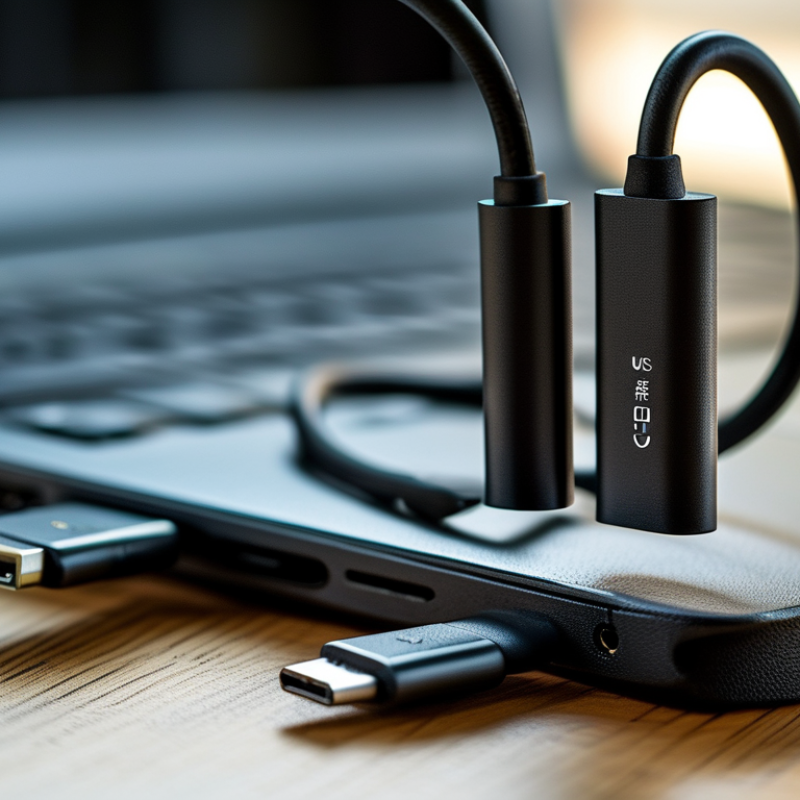
A USB-C interface is a small, oval-shaped connector with a reversible plug. It has 24 contact positions arranged in two rows. The symmetrical shape supports easier insertion and reduces orientation errors. However, the connector shape does not reveal its full performance. A port may support basic data transfer, fast charging, video output, or only limited functions.
In practical inspections, I check the port, cable, and device specifications together. Look for printed symbols near the interface. A lightning-style mark may indicate advanced data or display capability, while a charging symbol can suggest power support. These markings vary between products, so they should not be treated as universal proof. Check the product datasheet and test the connection when possible.
Cable identification requires extra care. USB-C cables can look identical while offering different data speeds, power ratings, or video functions. A cable with a thicker jacket may feel stronger, but appearance is not a technical measurement. I have once assumed that a matching connector meant matching performance. That assumption was wrong. For global purchasing, record the interface version, transfer rate, supported power level, and optional display mode. Ask suppliers for clear test reports and pin configuration details. Small differences matter. A complete inspection reduces compatibility problems, though specifications can still change across production batches. Keep the latest documents.
| USB-C Interface Type | Primary Data Standard | Typical Maximum Data Rate | Power Capability | Video Support | Key Identification Features | Recommended Buying Check |
|---|---|---|---|---|---|---|
|
Basic USB 2.0 over USB-C |
USB 2.0 | Up to 480 Mbps | Standard USB-C current capability may support up to 5 V at 3 A when properly specified. Higher power requires USB Power Delivery support. | Not provided by USB 2.0 alone. Video requires a separate supported alternate mode. | The port may use a standard USB symbol without a high-speed marking. The cable may contain only USB 2.0 data conductors even though the connector is USB-C. | Choose this type for keyboards, mice, charging accessories, basic sensors and low-speed peripherals. Do not assume support for external displays or fast file transfers. |
|
5 Gbps USB 3.2 Gen 1 |
USB 3.2 Gen 1 | Up to 5 Gbps | Power output depends on the host, cable and USB Power Delivery implementation. | Video is optional and depends on the device's alternate-mode capability. | A SuperSpeed symbol or a product specification stating 5 Gbps may identify the interface. A USB-C shape alone does not confirm this speed. | Suitable for general external storage, docking accessories and peripherals where 5 Gbps is sufficient. Confirm both the device port and cable rating. |
|
10 Gbps USB 3.2 Gen 2 |
USB 3.2 Gen 2 | Up to 10 Gbps | May support USB Power Delivery, but the available wattage is determined by the power source, device and cable. | Display output is not inherent to the data rate. It requires a compatible alternate mode and suitable system implementation. | Look for an explicit 10 Gbps specification. A blue connector insert is not a reliable universal identification method for USB-C products. | A practical choice for faster portable storage, imaging equipment and professional peripherals. Verify whether the stated speed is theoretical or actual sustained performance. |
|
20 Gbps USB 3.2 Gen 2x2 |
USB 3.2 Gen 2x2 | Up to 20 Gbps | Power capability varies by implementation. USB Power Delivery is required for higher power levels beyond basic USB current. | Video support is optional and must be separately specified. | The product documentation must explicitly state 20 Gbps or USB 3.2 Gen 2x2. Many USB-C ports support only one 10 Gbps lane and therefore cannot reach 20 Gbps. | Select this interface for compatible high-speed solid-state storage and data-intensive workflows. Check compatibility on both connected devices. |
|
20 or 40 Gbps USB4 |
USB4 | Up to 20 Gbps or 40 Gbps, depending on the version and implementation | USB Power Delivery is commonly used for advanced USB4 systems, but the actual power profile must be confirmed separately. | Display and peripheral tunneling may be supported, but available resolution and refresh rate depend on the host, device, cable and alternate-mode implementation. | The specification should state USB4 and the supported link speed. The USB-C connector cannot identify USB4 capability by appearance alone. | Recommended for modern docks, high-performance storage and multi-function connectivity. Confirm cable length, bandwidth and display requirements before purchase. |
|
Up to 80 Gbps USB4 Version 2.0 |
USB4 Version 2.0 | Up to 80 Gbps in supported asymmetric operation; implementation details may vary | USB Power Delivery Extended Power Range can support up to 240 W with a suitable source, device and electronically marked cable. | Advanced display and data tunneling may be available, but the actual output depends on the complete system configuration. | Look for an explicit USB4 Version 2.0 and 80 Gbps statement. A high-power cable rating does not automatically indicate high data performance. | Use for demanding professional storage, advanced docking and high-bandwidth workstation applications. Require written confirmation of speed, power and display features. |
|
Power Focus USB-C with USB Power Delivery |
USB Power Delivery over USB-C | Data speed may range from USB 2.0 to USB4. Power Delivery does not define the data rate. | Standard Power Range supports up to 100 W. Extended Power Range supports up to 240 W with compatible equipment and cable. | Video support is independent of power capability. | Check the stated wattage, voltage and current profile. Cables intended for power above 60 W generally require electronic marking to identify their higher-current capability. | Essential for laptops, monitors, portable workstations and high-power accessories. Match the charger, device and cable power ratings. |
|
Display Ready USB-C with DisplayPort Alternate Mode |
USB-C Alternate Mode using DisplayPort signaling | USB data speed is separate and may be reduced when display lanes are allocated to video. | May provide charging through USB Power Delivery, but video support does not guarantee a specific power level. | Can carry DisplayPort video when supported by the host, display, adapter and cable. Resolution and refresh rate depend on the complete system. | Look for a DisplayPort symbol, a display icon or an explicit statement that the USB-C port supports video output. Symbols are not applied consistently across all products. | Choose for monitors, docking stations and USB-C display adapters. Confirm whether the port supports video input, output or both. |
|
Charging Only USB-C Power or Charging Port |
May have no data function or only limited USB 2.0 data capability | Not guaranteed; confirm the product specification | May support basic USB-C charging or USB Power Delivery, depending on the design | Usually not supported unless explicitly stated | The port may be marked with a power symbol, battery icon or charging label. A USB-C connector does not inherently indicate data, video or fast charging support. | Suitable when charging is the main requirement. Do not use this category for data transfer, external displays or docking without written confirmation. |
Buyer note: USB-C describes the connector shape, not a guaranteed data speed, power level or video function. For international procurement, verify the complete specification for the host port, peripheral port, cable, charger, supported protocol, maximum wattage and display capability. USB-IF terminology and product labeling should be checked whenever performance claims are critical.